Enabling Two-Factor Authentication
Note
On your first login to the Myra DataHub, two-factor authentication is still disabled and must be enabled manually.
In the Two-factor authentication (2FA) area in the Profile view, you can manage two-factor authentication for your account.
Proceed as follows to enable the two factor authentication:

Two-factor authentication (2FA) area
- ► Click on the Enable button.
- ↳ The Confirm password dialog opens.
Confirm new password dialog
- ► Enter your current password in the field under Password.
- ► Click on the OK button.
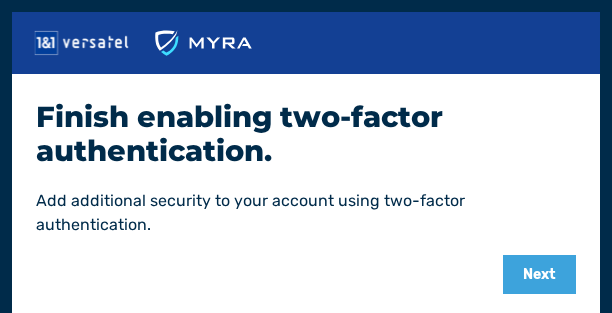
- ↳ The Finish enabling two-factor authentication. dialog with a QR code opens.
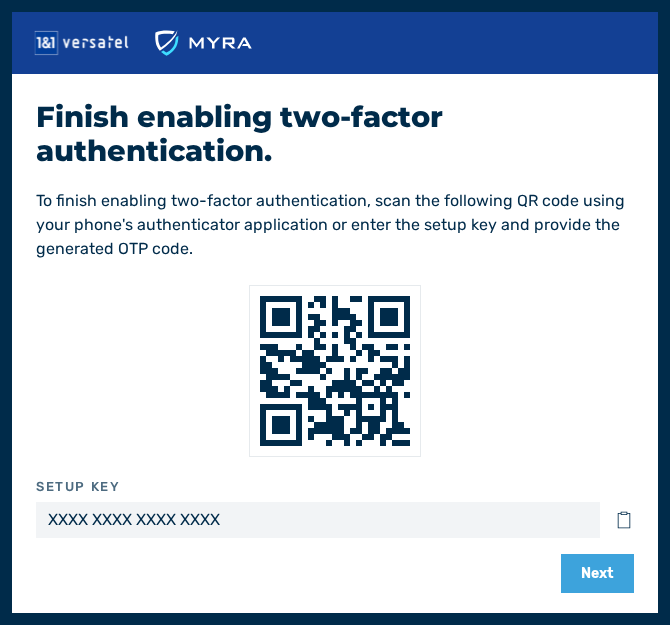
Complete the dialog for activating two-factor authentication.
- ► Scan the QR code with a TOTP-capable device or program (for example, an authenticator app). Alternatively, you can also use the setup key.
- ► Click on the Next button.
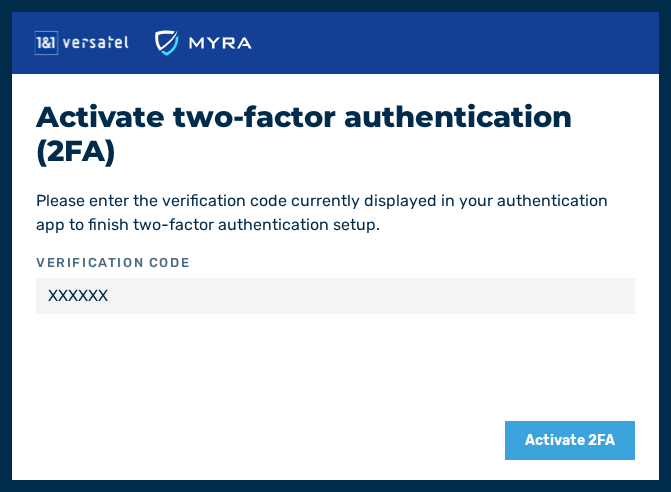
Activate two-factor authentication (2FA) dialog
- ► Click on the 2FA backup codes button.
- ↳ The 2FA backup codes dialog opens.
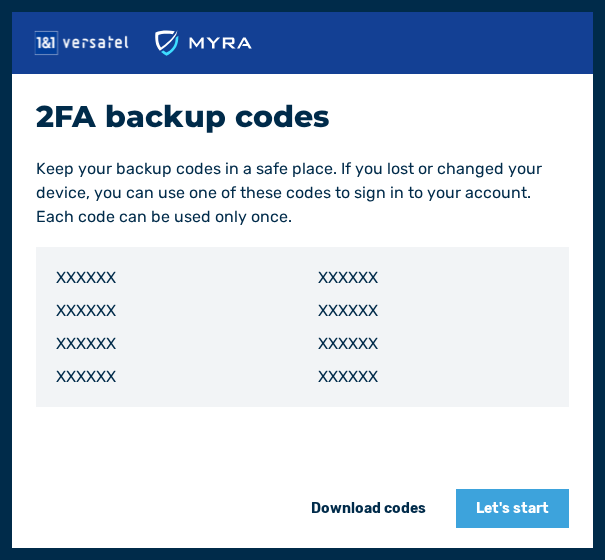
2FA backup codes dialog
-
► You have two options:
- Click on the
 icon to copy the backup codes to the clipboard and save them.
 - Download a backup file.
- ▷ Enter your 6-digit verification code in the field under Verification code.
- ▷ Click on the Save codes button.
- ➔ An HTML file containing the backup codes will be downloaded.
- Click on the
-
► Click on the X in the upper right corner to close the dialog.
- ➔ Two-factor authentication is set up.
Note
Store or keep the recovery codes in a safe place. Without these codes, you will not be able to access your account if you lose your 2FA device.
You can generate new emergency recovery codes at any time by selecting the Generate new codes button. You will then receive eight new one-time codes.
If you want to disable 2FA, you can do so at any time via the Disable button in the Two-factor authentication (2FA) section of the profile area.